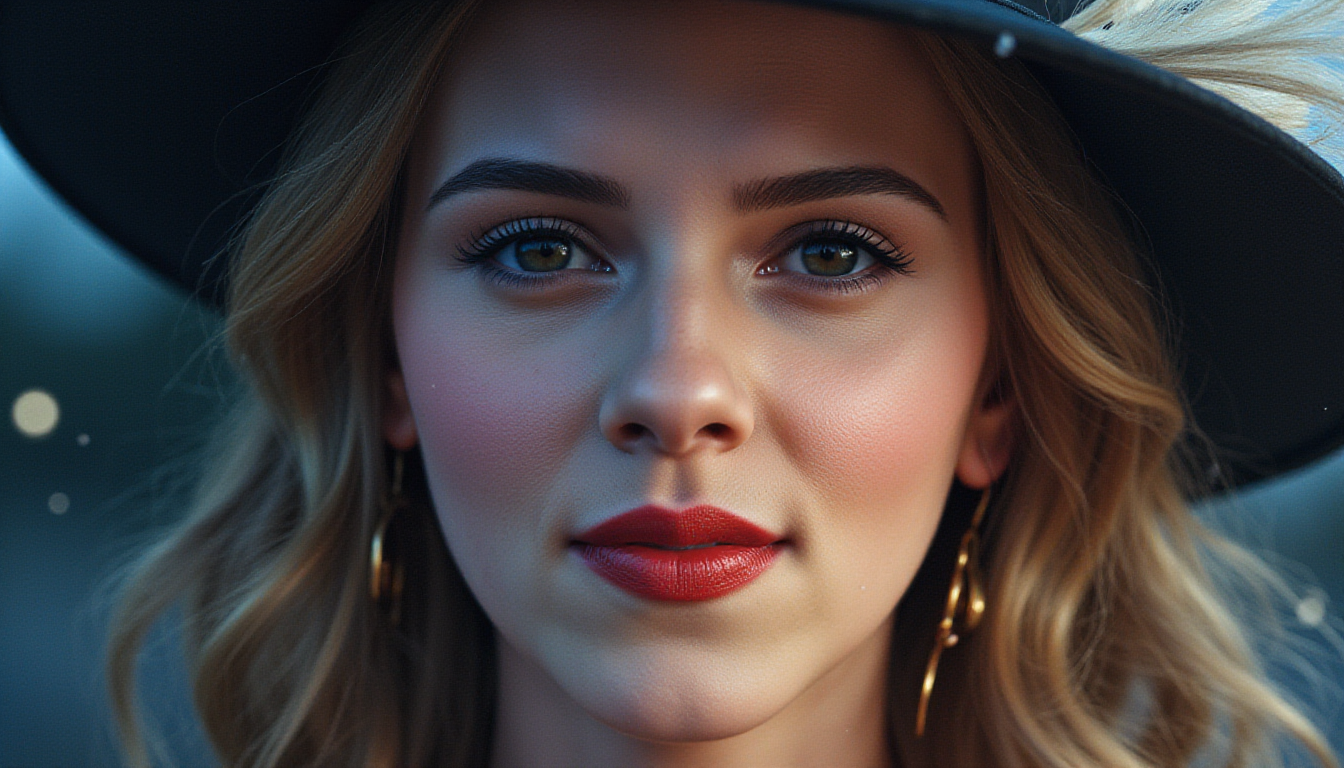
Flux AI is the latest image model that generates the highest quality images. Live Portrait adds facial expression by copying it from a reference video.
This workflow combines both techniques to generate a live portrait from text. All files to reproduce this animated video will be provided.
Reference video for facial expression:
Live portrait output from this workflow:
Table of Contents
Software
We will use ComfyUI, an alternative to AUTOMATIC1111.
Read the ComfyUI installation guide and ComfyUI beginner’s guide if you are new to ComfyUI.
Take the ComfyUI course to learn ComfyUI step-by-step.
Step-by-step guide
Step 1: Download the Flux AI model
Download the Flux1 dev FP8 checkpoint.
Put the model file in the folder ComfyUI > models > checkpoints.
Step 2: Update and install missing nodes ComfyUI
ComfyUI has native support for Flux starting August 2024. You need to update your ComfyUI if you haven’t already since then.
The easiest way to update ComfyUI is through the ComfyUI Manager. Click Manager > Update All.
Make sure to reload the ComfyUI page after the update — Clicking the restart button is not enough.
Step 3: Load the Live Portrait Flux workflow
Download the workflow below.
Drag and drop the JSON file to ComfyUI.
Step 4: Install missing nodes
If this is your first time using Live Portrait, you will see some nodes missing as red blocks.
Click Manager > Install missing custom nodes.
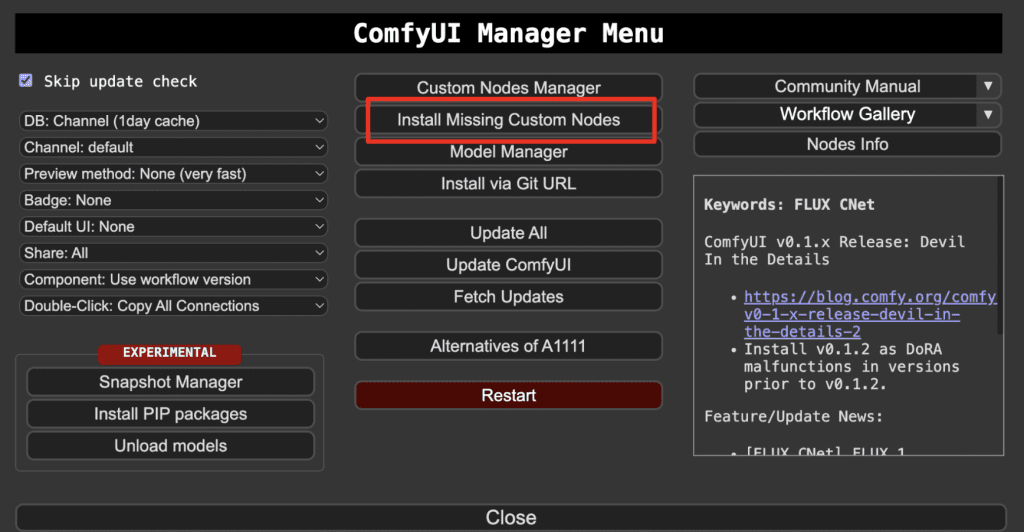
Install the Live Portrait custom nodes.
Restart ComfyUI.
Step 5: Install missing liveportrait models
Download all liveportrait models here.
Put them in ComfyUI > models > liveportrait.
Create the folder if it doesn’t exist.
Step 6: Upload a reference video
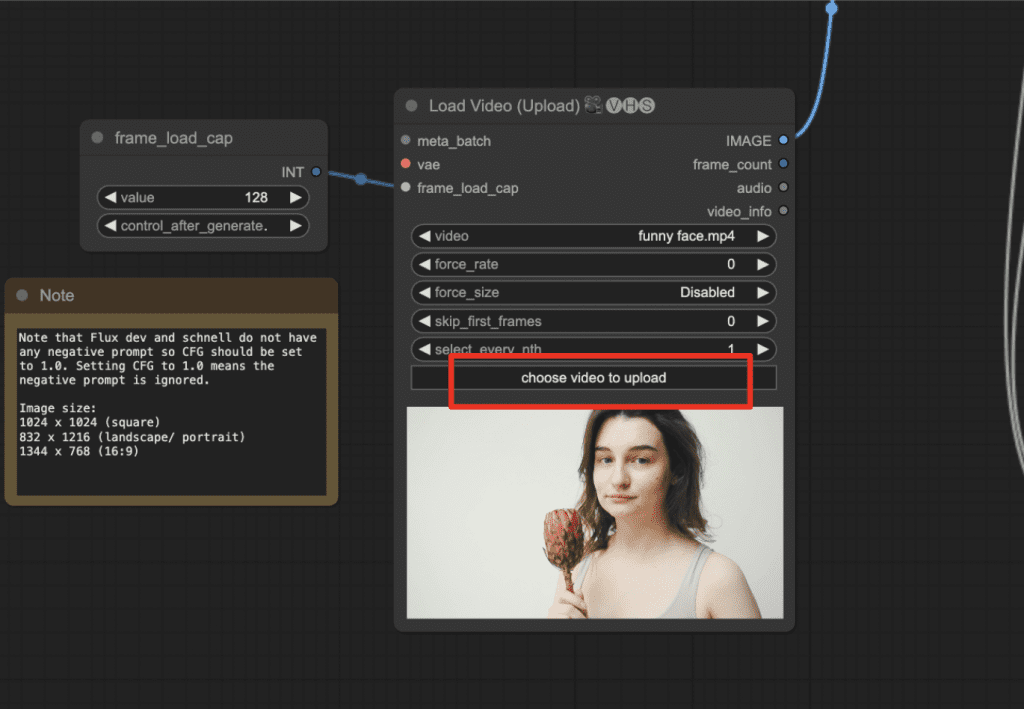
The workflow copies the facial expression of a reference video. You can use the video below for testing.
Find the Load Video (Upload) node. Upload the video by clicking choose video to upload.
Step 7: Generate the video
Click Queue Prompt to generate the video. You should get this:
Usage tips
Generate a different image
Change the seed value in the KSampler node to generate a different image.
Prompt
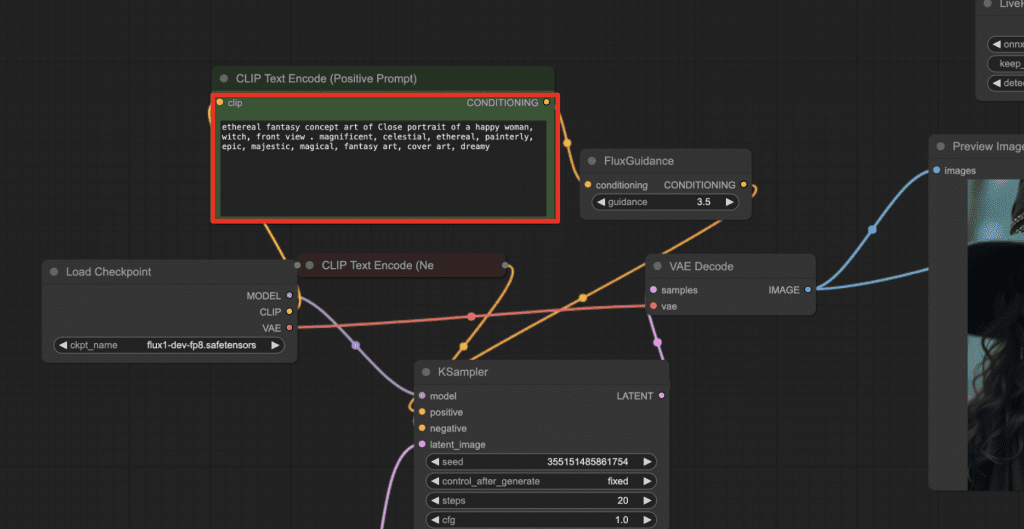
You can customize the image by changing the prompt in the CLIP text encode (Positive Prompt) node.
Reference videos
I find my reference videos on the royalty-free video site Pexel.
Live Portrait is not good with large movements. Find a video that is mainly static with slight changes in the face, such as blinking, winking, and starting to smile.

Hi, Andrew,
I tried running this workflow, but first I got the error below.
H:\ComfyUI\ComfyUI_windows_portable\ComfyUI\models\liveportrait\landmark.onnx failed. File doesn’t exist
So I searched for the landmark.onnx file, downloaded it to the folder, ran it again and got the error below.
DLL load failed while importing _framework_bindings: A dynamic link library (DLL) initialization routine failed.
I did Update All in ComfyUI Manager and then ran it, but I still get the same error.
Any help would be appreciated.
Hi, it seems that automatic model download no longer works. You can follow step 5 to download them manually.